Watch the beginner tutorial first
This short video walks through the beginner setup flow before you continue with the written tutorial below.
Open on YouTubePteClaw Beginner Guide
If you have not installed PetClaw yet, click the download button on the official website and choose the version that matches your device. If you are on a Mac, check whether your machine uses Apple Silicon or Intel before downloading. If you are on Windows, choose the Windows version. Once the download is complete, come back to this guide and continue with the setup steps below.
This guide walks you through the core first-time setup flow for PetClaw, step by step.
By the end, you will have a clearer sense of:
- which screens appear when you first launch the app
- which settings are worth finishing first
- when you are ready to start using PetClaw for real
Overall Flow
For most new users, the first-use experience can be understood in five stages:
- Sign in and connect the app to your account
- Let PetClaw complete its runtime preparation and installation steps
- Grant the permissions required for voice and desktop interaction
- Fill in your basic profile and review the recommended built-in skills
- Test voice shortcut and dialogue input with a real first task
Step 1: Sign in and enter onboarding
After installing PetClaw, the first screen you will usually see is the sign-in page. This step connects the app with your account so your setup progress and future preferences can be saved properly.
You can sign in with Google or use email verification. For most people, the right choice is simply the faster one.
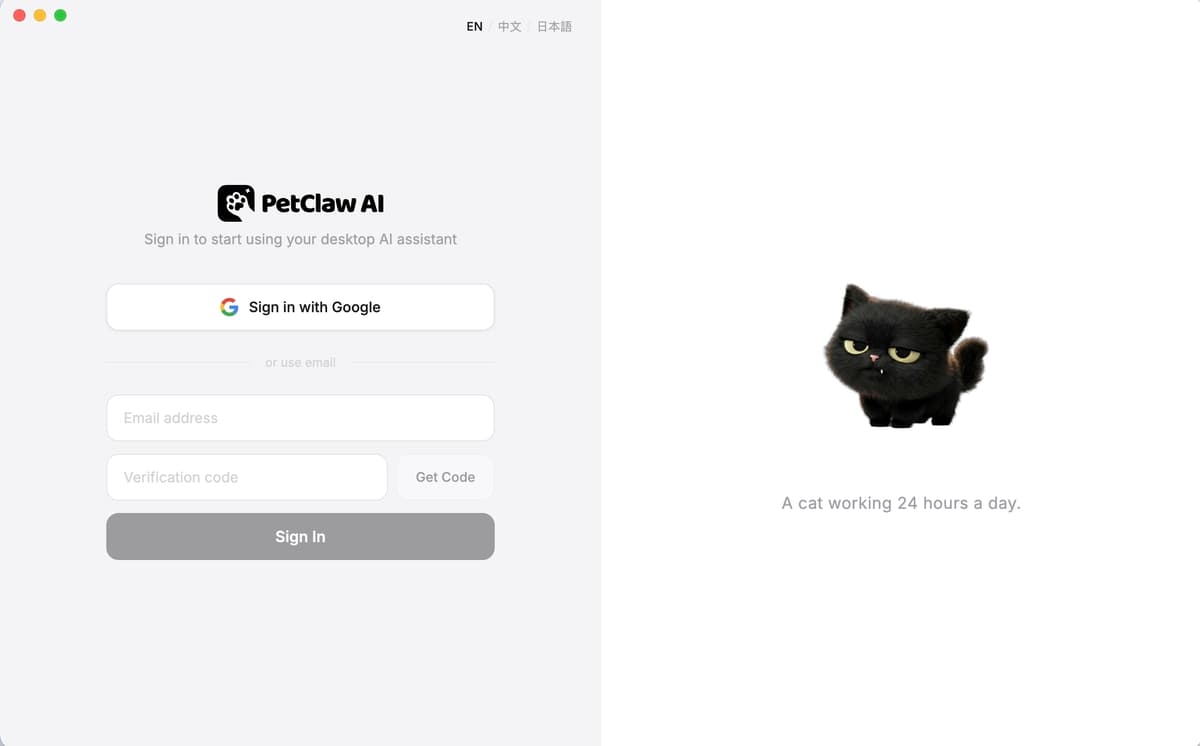
Once you are signed in, PetClaw can continue into the onboarding flow and start preparing the app for real use.
Step 2: Let PetClaw finish runtime preparation and basic setup
After sign-in, PetClaw may guide you through environment checks and runtime preparation, such as preparing Node.js, installing the local runtime, configuring AI-related components, and starting the local connection flow.
This stage shows the core setup work PetClaw is handling in the background so the app can run smoothly on your computer.
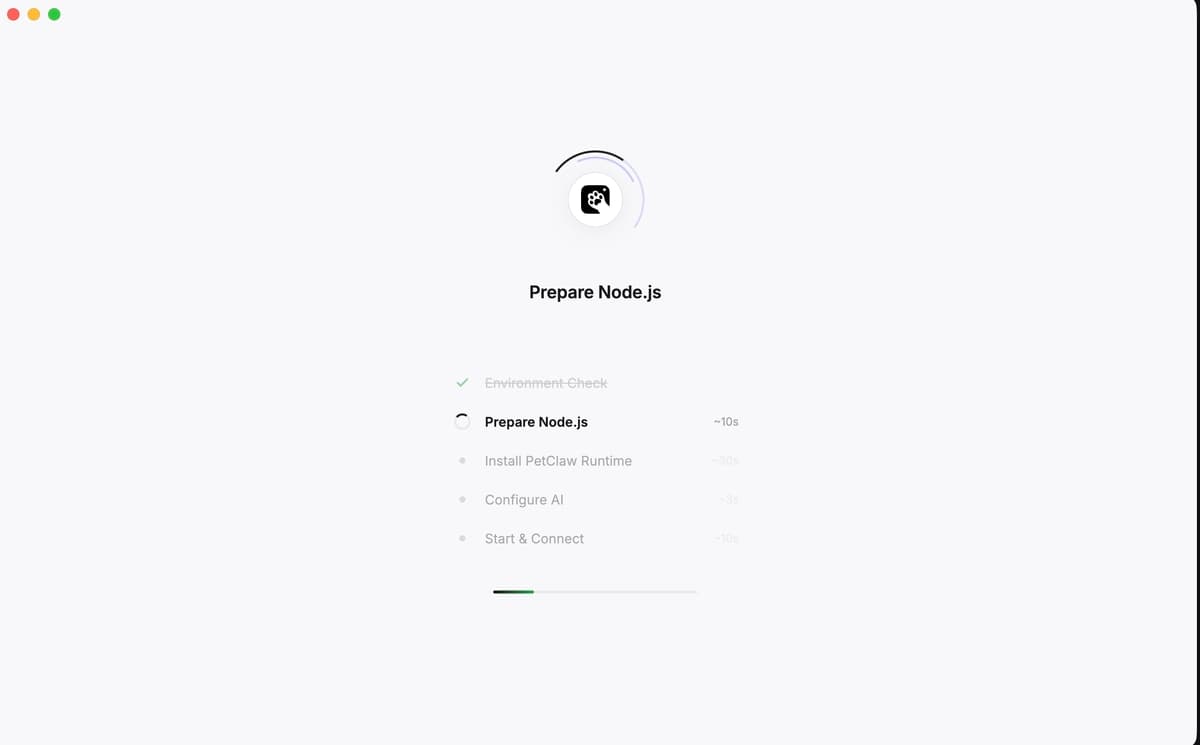
If this stage completes normally, PetClaw has moved from "just downloaded" to "technically ready to be configured and used."
Step 3: Grant the permissions PetClaw needs
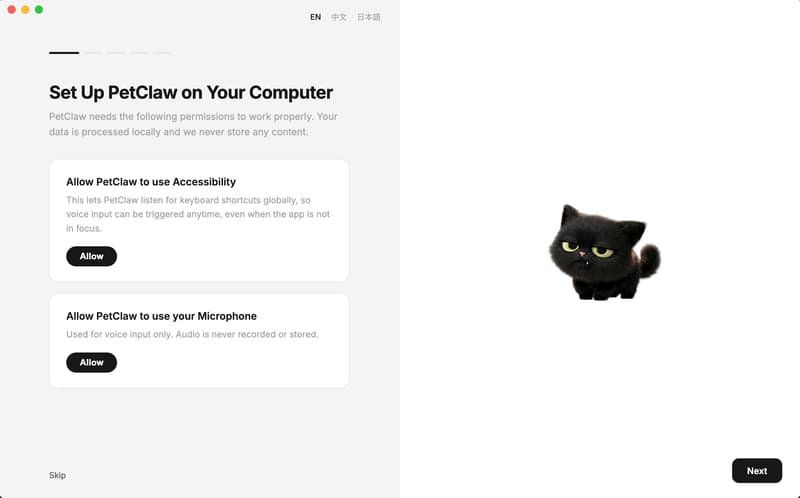
The next stage is permissions. In practice, two of them matter most at the beginning:
- Accessibility permissions, so PetClaw can work more naturally with your desktop
- Microphone permissions, so voice input and voice-triggered interactions can work correctly
The first screen explains why those permissions matter and what they unlock.
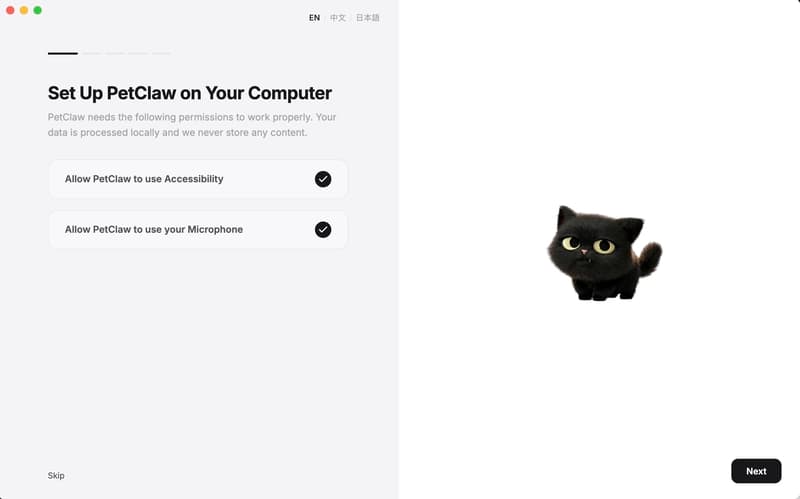
Once you finish granting them, the page moves into a completed state, which means the most important interaction path is now ready.
Step 4: Fill in your profile and review recommended skills
PetClaw then asks for a small amount of personal information, such as what it should call you and what role best matches your daily work or life scenario.
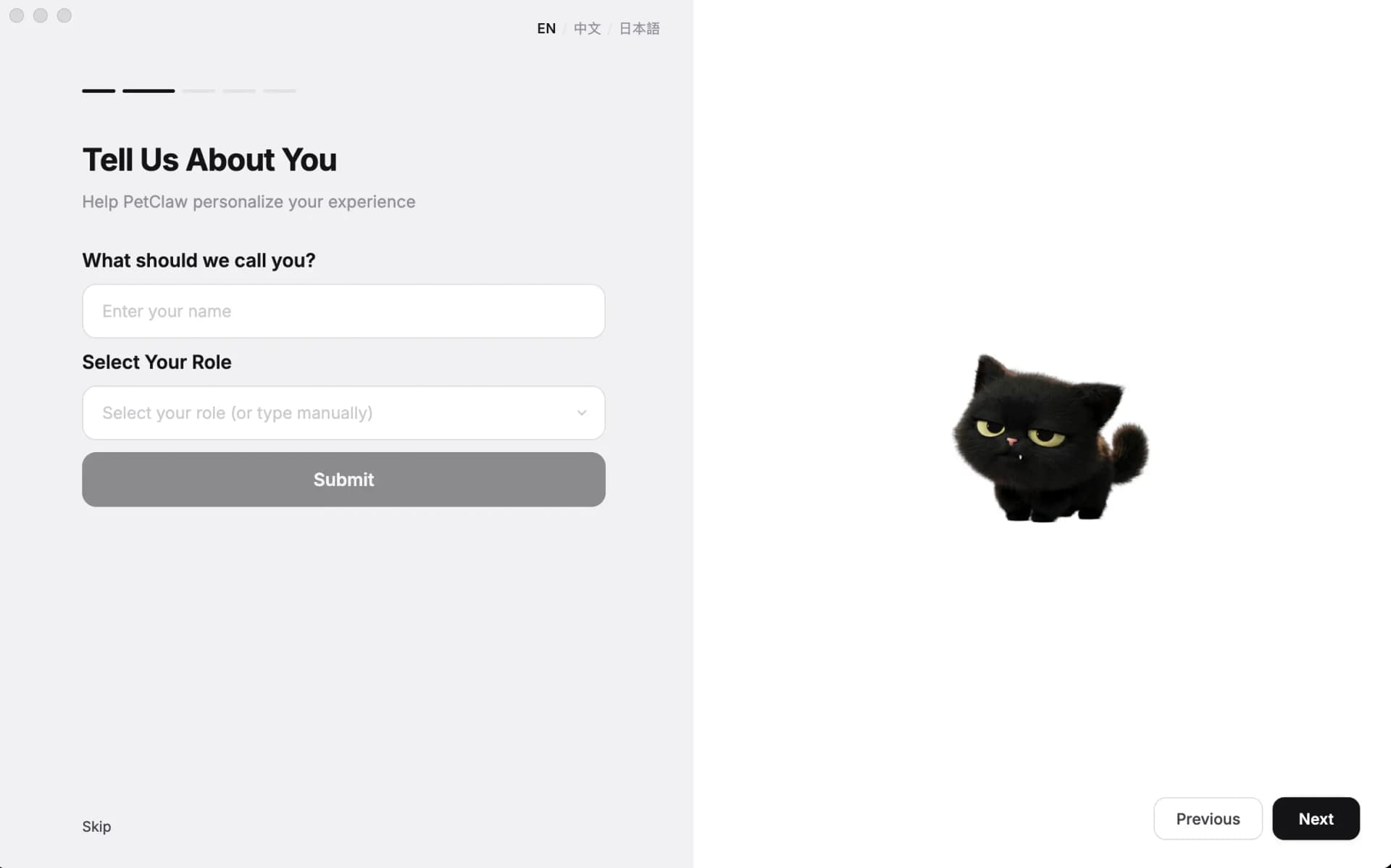
This gives PetClaw lightweight context so the app can feel more natural from the very beginning.
After that, PetClaw shows built-in skills and recommended capabilities that fit common use cases. You can think of this as the system's first batch of recommendations based on your setup and profile.
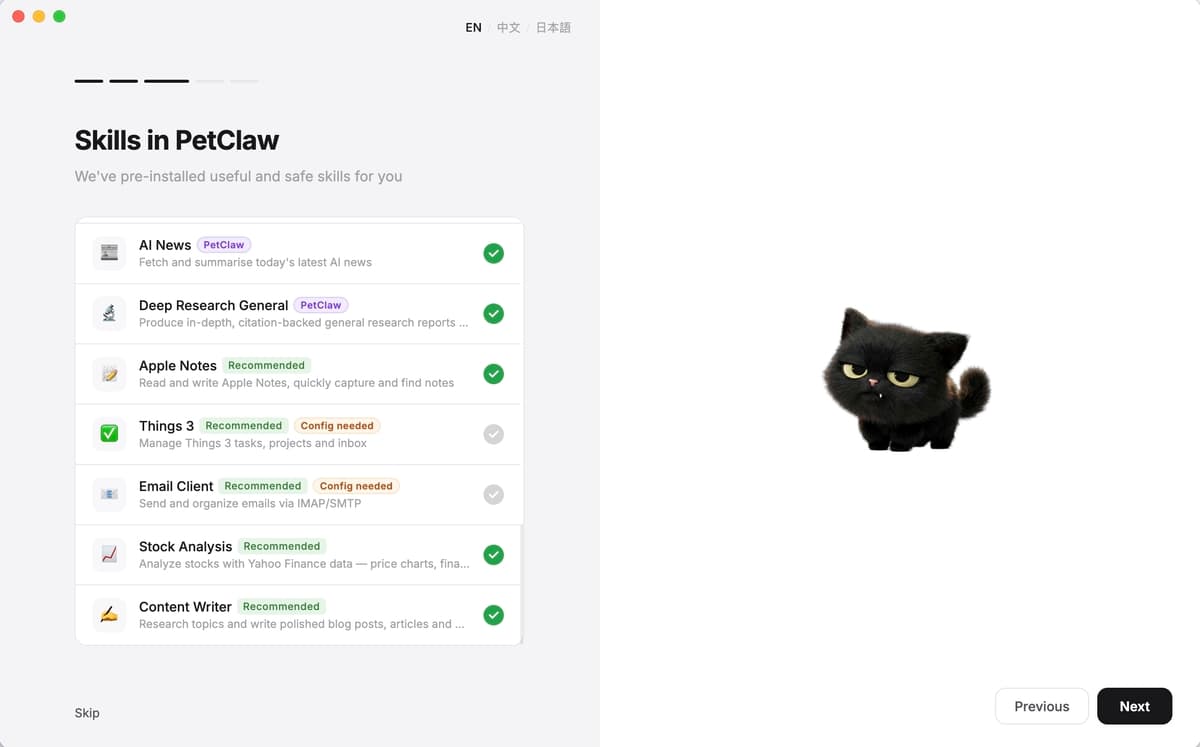
At this point, you are not expected to learn everything. You only need to identify one or two useful starting points.
Step 5: Test voice shortcut and dialogue input with a real task
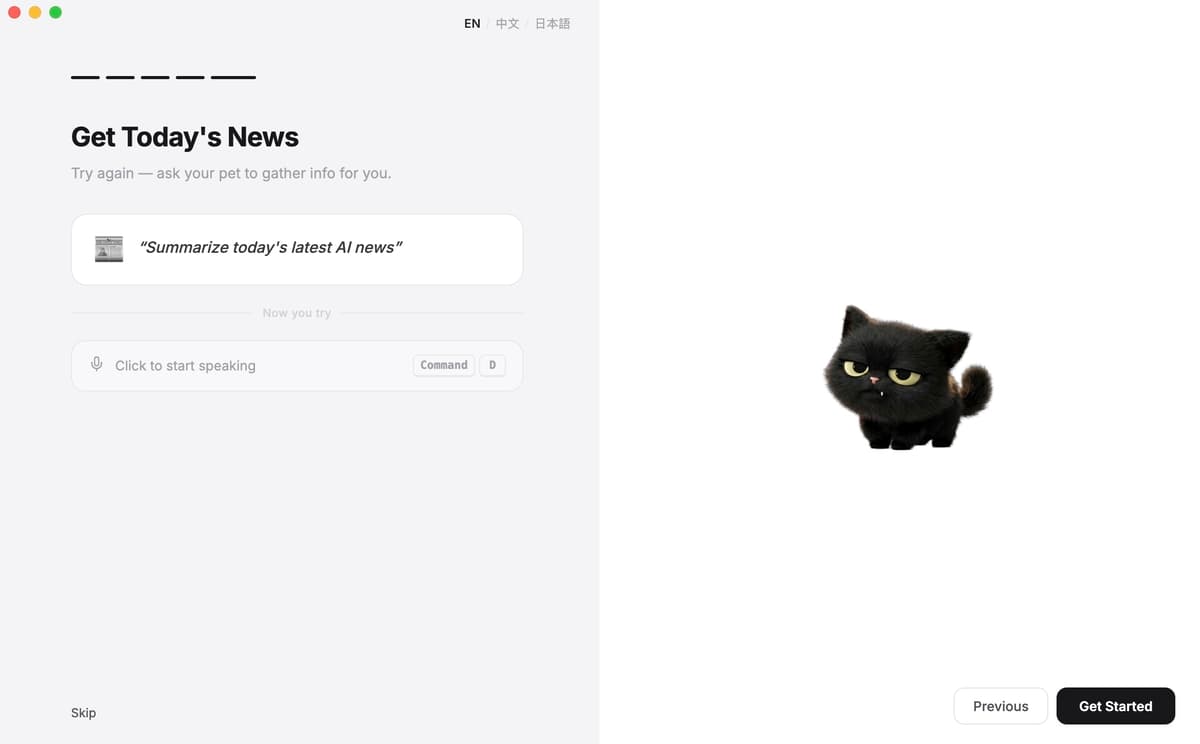
Before you fully start using PetClaw every day, onboarding usually gives you a simple example task to try right away, such as asking it to summarize today's AI news.
This matters because it shifts you from setup into actual usage. Instead of only reading configuration pages, you begin your first real interaction.
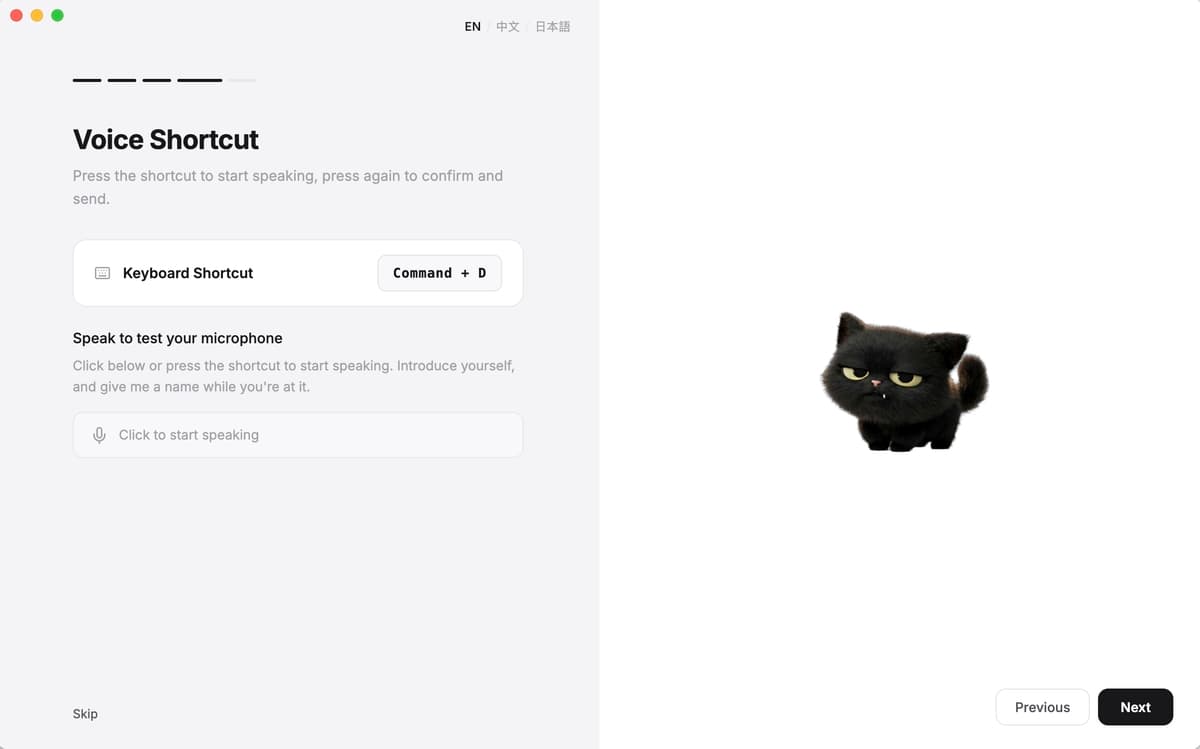
You will also see the voice shortcut and input testing screen, where you can confirm:
- which shortcut triggers voice mode
- whether your microphone input works
- whether the dialogue input flow feels usable on your machine
This is the point where PetClaw stops being "an app I just installed" and starts becoming "an assistant I can actually use."
Best first tasks to try
Once onboarding is complete, start with small and concrete requests. Good first examples include:
- "Summarize today's latest AI news."
- "Help me note the three most important things for today."
- "Remind me about my 4 PM meeting."
- "Help me draft a polite reply."
- "Turn this paragraph into key bullet points."
When onboarding is truly complete
For most users, onboarding is complete when all of these are true:
- you can sign in
- runtime preparation finished successfully
- required permissions are granted
- your basic profile is set
- you have seen the recommended built-in skills
- you have completed at least one voice or dialogue input test
At that point, PetClaw is no longer just newly installed software. It is ready to become part of your daily workflow.